Tuesday, March 27, 2012

Top 5 Linux Monitoring Tools. Web Based


Linux system monitoring is one of the most important tasks for every sysadmin: it is crucial to know everything about system including CPU load, network traffic statistics, memory consumption, logged in users, availability of disk free space or service. And it’s inevitable that something breaks or goes down from time to time so usually it’s just better to know it happened from Linux monitoring system’s alert rather than from angry user. Believe me, it is true.
In this article I’ve listed top 5 web based Linux monitoring tools which can cover almost all aspects of sysadmin’s monitoring tasks.

Nagios

This is one of the most popular web based Linux monitoring systems nowadays, actually it’s industry standard for IT infrastructure monitoring. Licensed under GPL Nagios is available for everybody free of charge and allows to monitor availability and response time of network services, usage of system resources like CPU load, RAM allocation etc., number of logged in users and many-many more. It doesn’t makes sense to list here everything that can be monitored by Nagios but its nature implies that main Nagios instance (server) collects information from either local system or Nagios clients (agents). It means you can install client software on number of Linux, BSD, Windows hosts or Cisco devices, point them to Nagios server and see states of their services or processes in one place: Nagios web based monitoring tool (see the screenshot below).
In case of any outage detected by Nagios server or any anomaly you will get an alert from Nagios. It’s important that Nagios suports wide range of alerts including e-mail, sms, chat messages and phone call notifications. Large number of official and third party plugins can extend Nagios’ functionality dramatically.
And one more thing, Nagios monitors states but it doesn’t show any graphs like network interface usage etc., that’s why it’s good habit to use Nagios with other monitoring tools listed below.
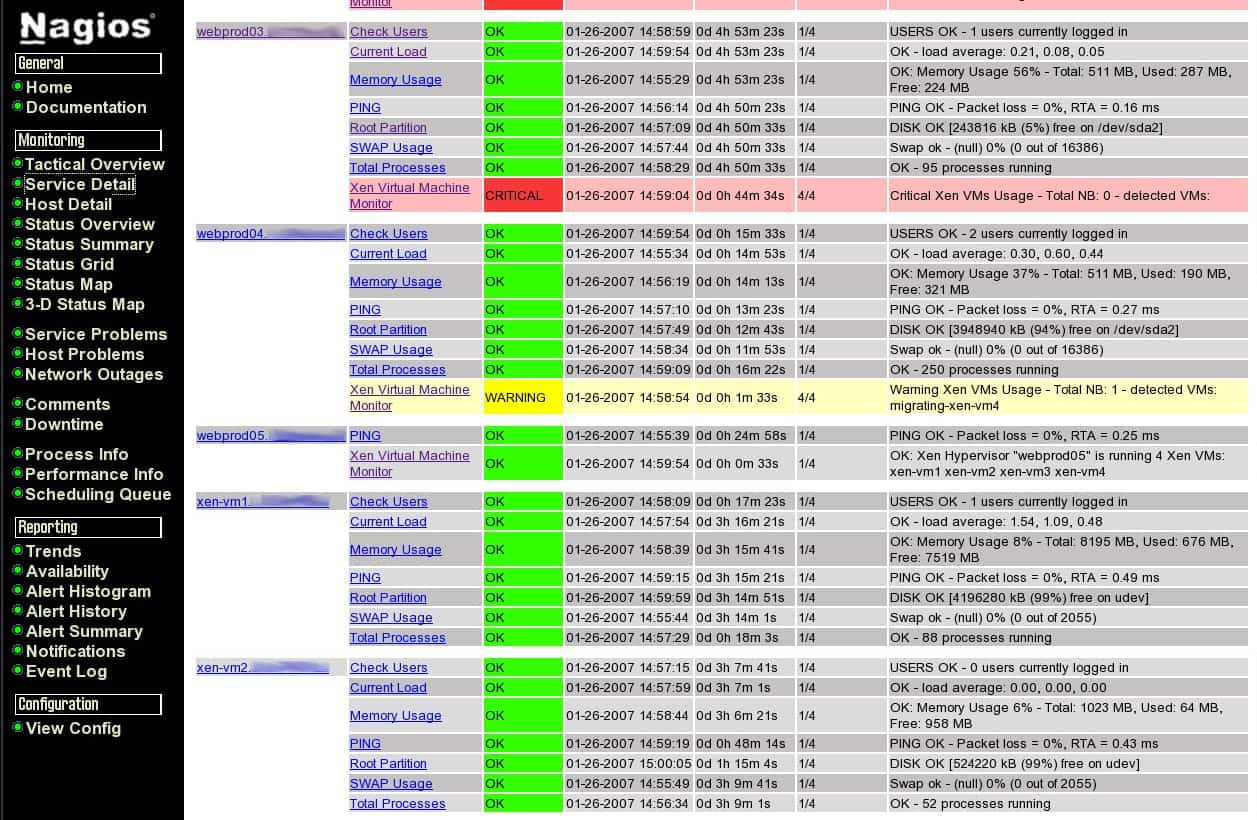
Linux system monitoring tools: Nagios screenshot

Project’s homepage: http://www.nagios.org/
Documentation and Howtos: Official Documentation, How To Monitor Remote Linux Host using Nagios 3.0, Centos Nagios Howto, Ubuntu Nagios Howto, FreeBSD Nagios Howto.

Cacti

Cacti is another web based monitoring system written in PHP and licensed under GPL. Unlike Nagios describe above Cacti was designed mainly fo the graphs — in brief, Cacti polls various services and then graphs resulting data. It uses RRDTool to build graphs so if you can some graphs in .rrd files you can easily attach them to Cacti and have everything in one place.
So you can see CPU load graphs, RAM usage, round trip time stats, bandwidth utilization and much more information collected from various hosts. As well as Nagios Cacti supports SNMP that makes it possible to monitor almost any device in your network: Linux hosts, *BSD hosts, Windows hosts, Cisco devices, Juniper equipment, voip phones, routers, switches whatever.
Meantime by default Cacti doesn’t provides alerts so you should install third party plugin (thold or others) for that or use more flexible solutions supporting alerts (like Nagios or Zabbix).
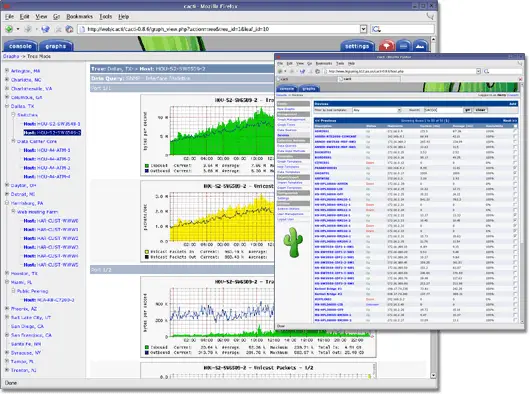
Linux system monitoring: Cacti screenshot

Project’s homepage: http://www.cacti.net/
Documentation and Howtos: Official Documentation, Centos/RedHat Cacti Howto, Debian SNMP+Cacti Howto, Ubuntu Cacti Howto.

Zabbix

Zabbix is enterprise class Linux monitoring system with impressive list of capabilities available out of the box. It is licensed under GPL and is written in PHP. In brief Zabbix can do the same tasks as Nagios and Cacti by default: Zabbix easily graphs monitored data and sends alerts to user in case of any problem. Using Zabbix you can create maps of the hosts, group hosts by various categories and so on.
I personally like Zabbix’s capability to track changes made into specified files, for example if /etc/password is changed at one of your 100 servers and you monitor it with Zabbix then you’ll get corresponding report about this authorized (or not!?) change.
Zabbix can collect data from remote hosts where Zabbix agent/client is running (just like Nagios). Zabbix shows various kinds of graphs including network statistics, CPU load and so on (just like Cacti). Probably Zabbix may seem rather complicated for beginners but I’d recommend to take some time and get familiar with this monitoring system.
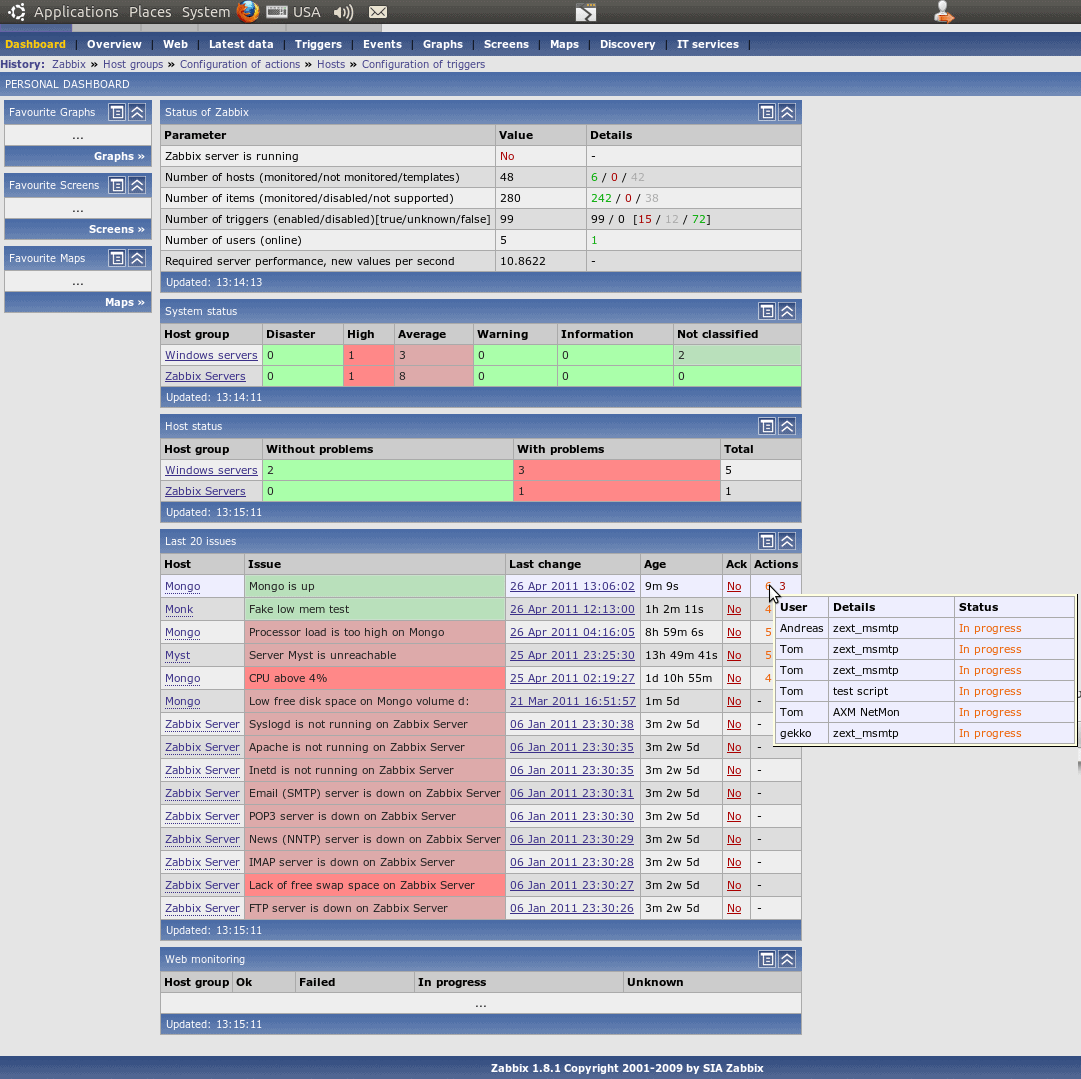
Linux system monitoring: Zabbix screenshot

Project’s homepage: http://www.zabbix.com/
Documentation and Howtos: Official Documentation, Ubuntu Zabbix Howto, Debian Zabbix Howto, Monitor Radius with Zabbix.

MRTG

MRTG is yet another open source monitoring tool that collects data at local and/or remote host by means of SNMP protocol. But MRTG is much more simple than Cacti, Nagios or Zabbix so it may be a good choice for small projects.
One of the most common applications of MRTG is monitoring of network interfaces, CPU, memory usage and network interfaces statistics. One of MRTG’s advantages is that it it extremely easy to deploy. Btw, MRTG was created by author of RRDTool Obi Oetiker.
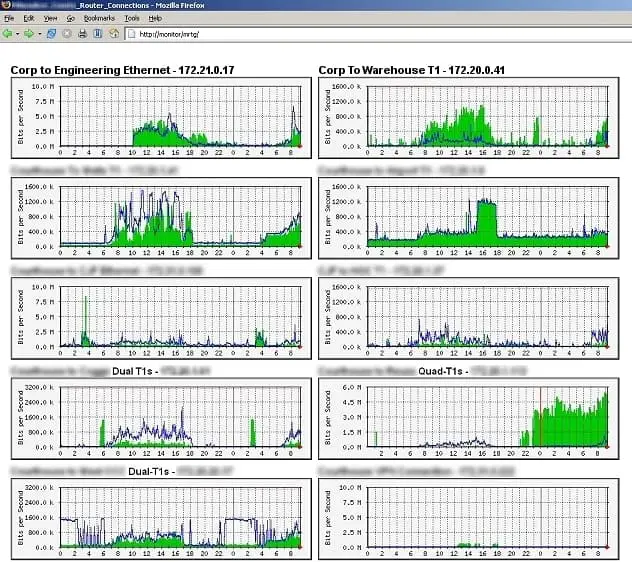
Linux system monitoring tools: Cacti screenshot

Project’s homepage: http://oss.oetiker.ch/mrtg/
Documentation and Howtos: Official Documentation, Linux MRTG Howto, Advanced MRTG for Linux, Centos MRTG Howto.

Nfsen

Nfsen is open source Netflow collector and analyzer available under open source license. It differs from monitoring tools described here — Nfsen collects only network usage data and shows the interactive graphs based on that data.
I found Nfsen as the only workable open source Netwflow analyzer available for Linux. Using Nfsen you can see the graphs showing network traffic on various hosts or networks, configure alerts (for example if bandwidth usage is lower or higher than average) and what it more important to digg into collected traffic.
Let’s imagine you see traffic spike at the graph that shows that some of your host was generating some TCP traffic 12 hours ago and you wish to know what was that. Nfsen makes it possible to investigate that spike and report what was destination and source IP addresses of that traffic, what was the protocol, port numbers and how many sesstions/flows were established. None of above mentioned monitoring systems do such an investigation. Nfsen’s graphs are interactive so you can select what data you wish to see at the graph and aggregate many data sources into one graph, it’s better to understand when building protocol breakdown graphs with Nfsen.
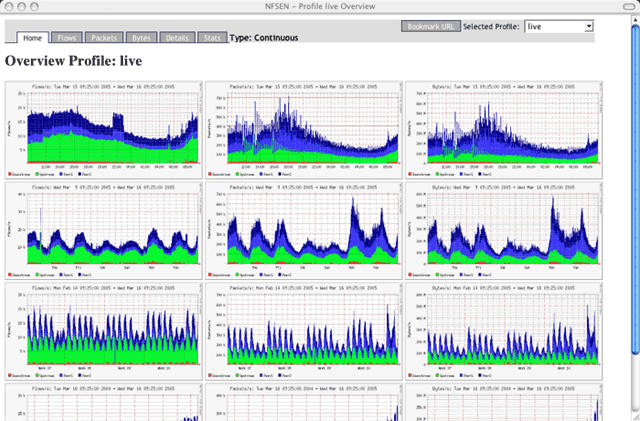
Linux system monitoring tools: Nfsen screenshot

Project’s homepage: http://nfsen.sourceforge.net/
Documentation and Howtos: Official Documentation, Nfsen and Nfdump Howto, Tracking incidents with Nfsen, Traffic Classification with Nfsen.

Bottom Line

Of course there are other web based monitoring tools for Linux available, some of them may even beat functionality of mentioned systems. If you feel that it makes sense to extend this list with other monitoring system just leave a comment here with brief description of suggested Linux monitoring system. Thank you in advance.

Wednesday, March 21, 2012

Smart Access Control with Apache


The Apache web server, which celebrated its seventeenth birthday in February, continues to dominate its peers in popularity. Given its vast array of features, and even greater list of add-in modules, it’s little wonder that Apache now boasts more than 60% of the HTTP server market share, according to the latest Netcraft report. If that includes your organization, you should learn about some of the most useful and effective modules you can use to restrict access to your Apache-powered website.

No doubt the most commonly used access control method for Apache is the .htaccess file, which allows you to specify configuration options for specific directories. But it isn’t the only way, and it’s certainly not the most efficient. We’ll discuss a few modules here that you can use to better customize access restrictions for your site, so you can, for instance, deny access for three hours every Tuesday and Thursday, or deny access to everyone from a specific domain.

User Authentication with htpasswd

Let’s begin with the simplest technique first, which relies on authentication. An administrator must create a passwords file that contains a list of usernames and associated passwords. Then, when users try to access a page, they are presented with a login screen. Only users who are listed in the passwords file are allowed access; all other users are denied access.

The passwords file is independent of any other file that maintains credentials of registered users. You must create the passwords file by hand and manually provide the usernames and passwords for all the users you wish to grant access to your site. Alternatively, you can use the mod_auth_ldap module to offer authentication to your operating system’s directory service if you already have LDAP configured.

If you’re not using LDAP, use the htpasswd utility that is part of the Apache installation to create the passwords file. The location of the htpasswd utility depends on how you installed Apache – whether as an independent package or as part of XAMPP or a Bitnami stack. If you installed Apache from the software repositories of your distribution, you’ll find it under /bin; if you installed Apache using the XAMPP stack, look under /opt/lampp/.

The command htpasswd -c /opt/lampp/lib/passwords username creates the password file under /op/lampp/lib. You can place the file anywhere you like within Apache’s directory structure. You need to use the -c option only once, when you create the file. When adding more users to the file, use htpasswd /opt/lampp/lib/passwords username2. Unfortunately you have to repeat the procedure for each user manually; you can’t create a passwords file from a list of usernames.

The next step is to make Apache authenticate users before allowing access. To do this you need to edit the httpd.conf file and create a new directory block for each directory you wish to block access to. Here’s a sample directory block that uses the passwords file to allow access only to authenticated users:


AuthType Basic
AuthName "Music Lovers May Proceed"
AuthUserFile /opt/lampp/lib/passwords
Require valid-user


The most important directives here are AuthType and Require. The former defines the type of authentication you wish to use – the choices are Basic or Digest. With Basic, passwords are transmitted over the Internet unencrypted, while Digest transmits each password as an MD5 hash, which makes it more secure. The Require directive tells Apache to check whether the user should be allowed access. In the above code sample, we use Require valid-user, which means only valid users are allowed access. You can similarly use Require user username to restrict access to only the listed usernames.

Although it’s not ideal because of the performance hit, you can use .htaccess files to the same effect. Just copy the same code into an .htaccess file within the directory you wish to restrict access to. Be sure to remove the and lines from the code though, as you only need them when working with httpd.conf and not with .htaccess, because the latter controls only the directory in which it’s placed.

While effective, the technique we’ve just discussed is not the most secure, because the passwords are stored in a basic file and may be transmitted over the Internet unencrypted. You should use the more secure AuthType Digest, as mentioned above, if you’re protecting sensitive data. The procedure is mostly the same with some minor difference, such as the use of the htdigest utility in place of htpasswd.

Restricting Access Based on Address

You can easily deny access to your whole site or specific sections of it using allow and deny directives in the httpd.conf file. If all you wish to do is refuse access to everyone from a particular address range, say 166.54.x.x, you can use this code block:


Order allow,deny
Allow from all
Deny from 166.54.


If you want to use this technique with .htaccess, just create a .htaccess file in the directory you wish to restrict access to and paste the same code into it, but remove the and lines.

Using the and directives in httpd.conf, you can apply the same code block to more than a single section of your website:


order allow,deny
Allow from all
Deny from 166.54.


Here, access to all URIs starting with a or b will be denied to everyone from a 166.54.x.x address.

Using rewrite_mod

One of the most popular Apache module is the regular-expression-based mod_rewrite, which employs user-defined rules to rewrite URLs. You can use this module to prevent image hotlinking, deny access based on a blacklist, deny access between specific times, and deny access to specified user agents or robots.
You can also use mod_rewrite in place of the above two code blocks, although that’s overkill for such simple denials:


RewriteEngine On
RewriteCond %{REMOTE_ADDR} ^166\.54\.
RewriteRule .*? - [F]


The RewriteCond directive defines the condition – in this case, remote address, which is a server variable.

Server variables define parameters such as REMOTE_HOST, REMOTE_PORT, REMOTE_USER, TIME_MON, TIME_DAY, TIME_HOUR, and HTTP_USER_AGENT.

You then use the RewriteRule directive to send an “access forbidden” message to everyone from 166.54.x.x addresses using the [F] flag. You can also use the RewriteRule ^/[abAB] – [F] line to deny access to several directories.

You can use several server variables with RewriteCond to create rules. The following code, for example, denies access between 3 p.m. and 9 p.m.
RewriteEngine On
RewriteCond %{TIME_HOUR} >15 [OR]
RewriteCond %{TIME_HOUR} <21
RewriteRule .*? - [F]

Here, everyone gets a forbidden message, but you can use another RewriteCond if you wish to deny access to only a specific group. There are many different flags apart from forbidden, such as the [CO] flag to set a cookie when a particular rule matches, or [G] to send a Gone message, which means the resource the user is trying to access is no longer available.

Keeping unwanted bots and suspicious hosts from accessing your site and data is part of the job of an administrator. The simple access control methods here can help you restrict access to only the people you trust. Access control through authorization or depending on factors such as time of day or IP address can help you deny your site to troublemakers.

8 Free Open Source Alternatives To Microsoft Exchange

Many users are frustrated with the planned obsolescence and expense of Microsoft products. One of Microsoft's popular products has been Microsoft Exchange, while many users are impressed with the features of Microsoft Exchange; others are looking for open source alternatives.


Ubuntu Server

For system administrators with experience, Ubuntu Server includes a full range of features such as private and public clouds, security from AppArmor, virtualization, integration between MacOS X and Microsoft Network. The Mail Server includes SMTP, POP3, and IMAP 4 capabilities, as well as Webmail, contact sharing, file sharing, and discussion boards. Ubuntu Server is free and support options are available.

Open-Xchange

Open-Xchange comes in several versions, including a free Community version, Hosting and Server Edition, and Advanced Server Version. The Advanced Server edition allows you to work with Microsoft Outlook or MS Exchange. The Hosting version is designed for hosting services and ISPs to provide email and group services. Only the Community version is free.

Citadel Groupware Server

Citadel works by dividing elements into “rooms”, such as email, RSS, chat, and calendar. Citadel works with the Linux, BSD, Unix, and Solaris OS, and includes features such as instant messaging and support for mobile devices. Citadel is easy to install, and there is a high level of online community support.

Horde

While Horde is not specifically marketed as an alternative to Microsoft Exchange, it offers a wide range of features and modules to add-in. Horde is open source. Because of the many alternatives, it may be difficult for inexperienced users to set op, but most administration is performed via a web interface.

Kolab

Kolab offers a full range of groupware features including email. Calendaring, contacts and multi-client support. Kolab works with IMAP email, and there is a plug-in available to integrate with Outlook.

Scalix

Scalix is the current incarnation of HP OpenMail, and has all the bells and whistles Exchange users have come to expect, including group calendaring, PIM, email, and busy/free services. There is both a free community edition and a commercial (supported) version.

eGroupware

eGroupware has both a free community edition and a commercial edition. Features include task, project and event management, file server, information sharing, and website content management.

SquirrelMail

For small organizations who are primarily interested in an email server, SquirrelMail is another alternative. There are a number of plug-ins available such as shared calendars, shared to-do lists, to-do reminders , and notes, which add to the productivity of this product.

When it comes to features, Microsoft sometimes seems to have the attitude of the small town general store provider: “If we don't have it, you don't need it”. Open source solutions, on the other hand encourage tweaks and add-ons to improve both productivity and enjoyment.
Advantages of Microsoft Exchange include the user-friendly interface, security, and support (at least until the next version is released and you have to buy an upgrade.) Besides limited features and planned obsolescence, Microsoft products are more expensive than (free) open-source alternatives.

How To Secure DNS with DNSCrypt


This open-source software for Mac and Linux does for DNS what SSL does for HTTP: It encrypts DNS traffic to prevent spoofing, snooping, and man-in-the-middle attacks.


Like most of the network protocols and systems in widespread use today, the Domain Name System (DNS) harbors significant security vulnerabilities. Though DNS provides a deceptively simple service -- translating human-friendly website addresses such as http://www.cnn.com into computer-friendly numerical IP addresses such as http://157.166.255.19 -- the system's integrity is a crucial cornerstone of Internet operations and trustworthiness.

One common attack on the DNS infrastructure is called "DNS spoofing." In this type of attack, also known as "DNS cache poisoning," an attacker tricks a DNS server into returning an incorrect IP address for a target website. For example, an attacker might perform cache poisoning on the DNS entry for a legitimate bank's website, thereby directing visitors to the hacker's fake look-a-like site in order to capture their login or banking details. This type of attack is difficult for users to detect, because the website address displayed in the user's web browser is not altered in any way. A single compromised DNS server at an Internet Service Provider can in this way affect potentially thousands of users.

Although DNS security issues and attacks have been around for years, recently there have been new developments in the area of DNS security solutions. Publically announced in December 2011, DNSCrypt is a recent example. Here I'll discuss what DNSCrypt is and how to give it a try.


What is DNSCrypt
DNSCrypt is an open source DNS encryption client program offered by OpenDNS, a third-party DNS provider, to prevent DNS snooping, spoofing, and other man-in-the-middle attacks. It does this by completely encrypting the DNS traffic to and from a user's computer and the OpenDNS servers. The encryption wraps itself around the DNS traffic much like SSL wraps itself around HTTP traffic, though DNSCrypt is using another form of encryption: a type of elliptic-curve cryptography, called Curve25519.
Keep in mind, DNSCrypt is currently in the Preview Release phase with only support for users on Macs with at least Snow Leopard or Linux users. Windows support is expected by the end of April 2012.


What about DNSSEC?
Domain Name System Security Extensions (DNSSEC) is a separate DNS security solution that authenticates DNS traffic. It modifies DNS to add support for cryptographically signed responses, thereby preventing the tampering of the IP addresses that are returned from the DNS server.

It may seem like DNSCrypt and DNSSEC are competing solutions, but they are actually complimentary and can be used together for comprehensive security. DNSSEC provides protection against DNS spoofing and other man-in-the-middle attacks, and DNSCrypt provides double-protection and prevents any eavesdropping on traffic, even by ISPs.

You could implement DNSSEC on your own DNS servers or use a provider that supports it, such as Comcast in the United States.


Using DNSCrypt on Your Mac
OpenDNS is currently offering a Mac OS X client that works on Snow Leopard or later. So if you're an Apple user, start by downloading the client. Then simply open DNSCrypt and check the Enable OpenDNS and Enable DNSCrypt checkboxes.

DNSCrypt

If you have a firewall, other network filtering solution, or are browsing from public Wi-Fi hotspots, try enabling the DNSCrypt over TCP/443 option to ensure the DNS traffic can reach their servers. And if reliability is a must, enable Fallback to insecure DNS, which makes the client use your original DNS server if it can't contact the DNSCrypt servers.

Keep in mind, the client currently does not retain preferences or state after reboots. So until the official release, you must manually open the client and re-enable after reboots and re-enable any other options as well.


Using DNSCrypt in Linux
OpenDNS released the DNSCrypt client on GitHub, so Linux users can give it a try. But keep in mind, there's no user interface yet and it must be enabled via the Terminal.

To get started, download the package for your Linux distribution: 32-bit or 64-bit DEB package (Debian, Ubuntu, other .deb-based distributions) or 32-bit or 64-bit RPM package (Openwall, CentOS, Fedora, other .rpm-based distributions).

Then install the package using your package manager and open a terminal to run:


sudo /usr/sbin/dnscrypt-proxy –daemonize

Next set your DNS settings to 127.0.0.1, such as via the Network Connections windows. Finally, confirm you're using OpenDNS here .

DNSCrypt won't start automatically at startup but you can, for example, create an init script.


In Summary
Your DNS security has a great deal to do with the DNS provider you use. OpenDNS claims to offer a high level of security, and using the service (even without DNSCrypt) in place of your ISP's DNS or your own server may increase your DNS security.

Using DNSCrypt, however, can completely encrypt your DNS traffic, preventing pretty much all DNS-based attacks and snooping.

If you run your own DNS server within your organization, consider implementing DNSSEC and/or DNSCurve.

7 Best Free Application Servers


An application server is computer software which provides the business logic for an application program. It offers services such as management of large distributed systems, data services, load balancing, transaction support, and network security. The application server is one part of a three-tier application, consisting of a graphical interface server, an application (business logic) server, and a database / transaction server. Many application servers support the Java platform, but they can be found in other environments.
There are good reasons to deploy an application server in a corporate environment. At a high level, an application server enables updates and upgrades to applications to be distributed to all users. System administrators also benefit from the fact that changes to application configuration can take place centrally, which greatly simplifies technical support and ultimately the end user experience. Application servers also simplify user management, avoiding the need to set up and maintain user-management systems for applications. This type of software also enhances scalability and resource usage, and exposes business components via different deployment wrappers.
As the cloud becomes increasingly more important, the role of application servers is only set to increase.
To provide an insight into the quality of software that is available, we have compiled a list of 7 application servers which may result in significant cost savings for organisations which develop enterprise applications.
Two software applications which are worthy of a mention are IBM WebSphere Application Server and Apache Tomcat. IBM's offering is available in a community edition that is released under a free to use and distribute license, but it is based on Apache Geronimo which is featured below. Apache Tomcat is, in fact, a web container not a fully fledged application server. A web container is the web component of a web server that interacts with the servlets, Java classes that extend the capabilities of servers that host applications access. Nevertheless, Tomcat avoids some of the overhead associated with full-featured application servers.
To provide an insight into the quality of software that is available, we have compiled a list of 7 impressive open source application servers. Hopefully, there will be something of interest here for any organisation that wants a layered architecture.
Now, let's explore the 7 application servers at hand. For each title we have compiled its own portal page, a full description with an in-depth analysis of its features, together with links to relevant resources and reviews.
Application Servers
JBoss J2EE platform for developing and deploying enterprise Java applications
Zope Object-oriented web application server written in Python
Apache Geronimo Create Java/OSGi server runtimes that meet the needs of enterprise developers
GlassFish Provides a structured process for developing an application server
Zend Server CE Web application server for PHP 5
JOnAS Implementation of the Java EE 5 certified application server specification
Jetty HTTP Servlet Server (Application Server) written in Java

Monday, March 19, 2012

5 Small Business Mobile Server Monitoring Apps


Mobile server monitoring apps can help small business IT view server health and get real-time notifications on your mobile phone when something goes wrong.

Proper monitoring of your small business server ensures high availability and performance for your business applications. New smartphone and tablet applications can help system administrators remotely control servers, even when you can't be in the office.
Using a mobile application (mobile app), system administrators can remote login to systems to address server problems, view health and status updates and you can also set mobile notifications to alert you when something is wrong.
Recommended Reading: Does My SMB Need a Server?

5 Mobile Server Monitoring Apps

Small Business Server Monitoring1.  Mon.itor.us: A free website, server and traffic monitoring service from Monitis. The free app is a native agent for Windows, Linux, Solaris, FreeBSD, Solaris. It offers computer resource utilization monitoring (CPU, RAM, storage and network) and the complete Mon.itor.us toolkit includes application performance monitoring, website up-time monitoring and other features. Monitis offers both Android and Web-based mobile server monitoring apps.
2.  PC Monitor: An app to manage your server from iPhone, iPad, Android or windows 7-based mobile devices. The "Monitor Everything" apps lets you manage all computer resources, network performance, IIS, Exchange, Active Directory and Hyper-V. Small business server administrators can define smart custom rules to fine tune alert conditions that can notify you and run specific tasks when triggered.
3.  SerafinSoft Server Monitor: This simple server monitor app for Android devices can help small businesses keep an eye on your server anywhere you go. The app supports TCP and SSH tunneling. The app is free and the current version (1.2.2) supports Android 1.6 and up.
4.  Server Density: An iPhone server monitoring app that sends server push notifications to your iPhone. The app features real time CPU load, memory usage, disk usage, network traffic & Apache status and server push notification alerts when things go wrong. You can pause and resume alerts when you are fixing a problem and view historical graphs.  Server Density mobile server monitoring apps are available for the iPhone and Android devices.
5.  spc-m Server Monitor: A free app for Android devices to monitor servers with a manual refresh. The app allows you to check the accessibility of server using one of three protocols: HTTP, TCP or ECHO.You can also use standard ping tools for check any hosts and receive a list of IP entries for selected host (nslookup like).  The app is free and the current version (1.0.6) supports Android 2.1 and up.

Thursday, March 15, 2012

65 Open Source Replacements for Security Software

Every day, threats to enterprise IT systems continue to grow. According to the FBI, cyberwar will soon replace terrorism as the number one threat to the U.S. Reports of hackers accessing organizations' servers for years without detection have awakened security managers to the risk from advanced persistent threats (APTs).

And now, in addition to worrying about traditional malware infecting their PCs and servers, organizations must also protect against threats to smartphones and tablets.

It's no wonder that a recent survey found that employment for security professionals is at an all-time high. In addition, 62 percent of organizations planned to hire more IT security staff this year.

These growing security threats have forced many organizations to increase their IT security budgets.

However, switching to open source security software offers the possibility of offsetting some of those budget increases.

This month, we've updated our list of open source security software that could replace popular closed source applications. It includes solutions for home and small businesses, as well as enterprises.

As always, if you have an open source security solution you'd like to add to the list, feel free to make note in the comments section below.

Follow original link here at http://www.datamation.com/security/65-open-source-replacements-for-security-software-1.html